Jambox Jawbone Manual: Troubleshooting & Repair Guide
This comprehensive guide details solutions for common Jambox issues‚ from Bluetooth pairing failures to sound problems and even “bricking” scenarios․
It covers both software and hardware fixes!
The Jawbone Jambox‚ released in 2010‚ quickly became a popular portable Bluetooth speaker known for its sleek design and surprisingly robust sound for its size․ This guide aims to assist owners – both current and those reviving older units – in troubleshooting and repairing their Jambox speakers․
Originally lauded for its innovative features and voice-prompted pairing‚ the Jambox‚ and later the Big Jambox‚ have unfortunately become prone to certain issues with age․ Common problems include Bluetooth connectivity failures‚ distorted audio (often manifesting as static)‚ and complete system lockups – commonly referred to as “bricking”․ This manual will address these challenges‚ offering solutions ranging from simple software resets to more involved hardware repairs like aux port soldering․
We’ll cover both the original Jambox and potential issues with the Big Jambox‚ drawing on community knowledge and repair techniques․
Understanding Common Jambox Issues
Jambox speakers‚ while durable‚ exhibit recurring problems as they age․ No sound output is frequently reported‚ often linked to the headphone jack’s internal switch failing‚ causing a disconnection․ Bluetooth connectivity problems are also prevalent‚ ranging from pairing difficulties to complete signal loss‚ sometimes exacerbated by Windows driver conflicts with the Virtual Miniport Adaptor․
Another common issue is the Jambox becoming “bricked” – unresponsive with no lights or sound‚ yet still recognized by a computer․ This often occurs during firmware updates‚ particularly when attempting unofficial modifications․ Static noise‚ especially when using the aux input‚ points to a broken connection within the port itself․

These issues aren’t always fatal; many can be resolved with software tweaks‚ firmware reflashing‚ or relatively simple hardware repairs․

No Sound Output: Diagnosing the Problem
Complete silence from your Jambox requires systematic troubleshooting․ First‚ rule out external factors: ensure the volume is up and the audio source is functioning correctly; If using the aux input‚ test with different cables and devices․ A common culprit is a faulty headphone jack connection; the internal switch may have lost contact․

Software glitches and firmware issues can also cause sound failure․ Try a simple reset․ If that fails‚ consider a firmware update via MyTalk․Jawbone․com․ Static noise often indicates a broken solder joint within the aux port‚ requiring physical repair․ Before attempting hardware fixes‚ explore software solutions thoroughly․
Determine if the issue is consistent across Bluetooth and aux connections to narrow down the source․
Software Glitches & Firmware Issues
Temporary software hiccups are frequent causes of Jambox sound problems․ Begin with a basic power cycle – turn the Jambox off and on․ If the issue persists‚ attempt a factory reset (if buttons are functional)․ Crucially‚ outdated or corrupted firmware can lead to malfunctions․
Visit MyTalk․Jawbone․com to check for and install the latest firmware updates․ Be cautious during updates; interrupted processes can “brick” the device․ If an update fails‚ the JawboneUpdater may halt․ Users have reported issues reverting updates after attempting modifications to firmware files․
Ensure your connected device’s software isn’t conflicting with the Jambox․ Regularly updating both can prevent compatibility issues․
Headphone Jack Connection Failure (Static Noise)
A common Jambox issue manifests as static noise‚ often indicating a problem with the headphone jack’s internal connection․ This isn’t necessarily related to headphones being plugged in; the switch itself can fail․ The root cause is typically a break in the connection between two metal contacts within the port․
A surprisingly effective temporary fix involves carefully manipulating these contacts․ With the Jambox powered on‚ gently press the upper metal contact to force a connection with the lower one – sound may return․ However‚ this is a short-term solution․
A permanent repair requires soldering․ Re-soldering these two metal contacts restores the connection‚ eliminating the static and restoring audio functionality․ This is detailed in several online repair guides․
Bluetooth Connectivity Problems
Experiencing difficulties pairing your Jambox? Several factors can disrupt Bluetooth connections․ First‚ ensure no other devices are actively attempting to connect‚ as this can cause interference․ A “hard reset” often resolves pairing issues; power off Bluetooth on all nearby devices‚ then power on the Jambox and press the circular button six times rapidly․
Look for a flashing red light‚ indicating pairing mode activation․ Hold the circular button after the flash to confirm․ Furthermore‚ Windows users may encounter conflicts with the Virtual Miniport Adaptor․ Ensure this driver isn’t disabled and troubleshoot any WAN miniport driver problems․
Updating to firmware version 2․1 via MyTalk․Jawbone․com can also address connectivity bugs․
Bluetooth Pairing Mode Activation (Hard Reset)
When standard pairing fails‚ initiating a hard reset can force your Jambox into discovery mode․ Begin by completely disabling Bluetooth functionality on all other devices within range to eliminate potential interference․ Next‚ power on your Jambox․ Rapidly press the circular power/pairing button six times in quick succession․

A successful hard reset is visually confirmed by a flashing red light; This indicates the Jambox is now actively seeking a Bluetooth connection․ Immediately after observing the red flash‚ press the circular button one additional time and hold it․ Maintaining this hold will ensure the device remains in pairing mode‚ ready for connection․
Remember to update the software to version 2․1 using MyTalk․Jawbone․com after a successful reset․
Windows Bluetooth Driver Conflicts (Virtual Miniport Adaptor)
Windows users may encounter Bluetooth connectivity issues with their Jambox due to conflicts within the Bluetooth driver stack‚ specifically involving the Virtual Miniport Adaptor․ The problem arises when this adaptor is unexpectedly disabled‚ or the WAN miniport experiences driver errors that the Windows troubleshooter cannot resolve․
Investigate the status of your Bluetooth drivers in Device Manager․ Look for any flagged devices or error messages related to the Virtual Miniport Adaptor or WAN Miniport․ Ensure these drivers are up-to-date․ If problems persist‚ attempt to reinstall the Bluetooth drivers completely‚ or consider temporarily disabling the WAN miniport to isolate the issue․
This can sometimes restore Bluetooth functionality and allow your Jambox to connect successfully․
Firmware Updates & Recovery
Maintaining up-to-date firmware is crucial for optimal Jambox performance and stability․ Regularly check for updates via MyTalk․Jawbone․com‚ the official platform for managing your device․ Firmware updates often address bugs‚ improve Bluetooth connectivity‚ and enhance sound quality․
However‚ updates can sometimes fail‚ potentially “bricking” your Jambox – rendering it unresponsive․ If this occurs‚ recovery procedures are necessary․ For original Jambox models‚ specific methods exist to attempt unbricking‚ often involving careful file manipulation during the update process‚ as discussed in online communities like r/Jawbone․
Always proceed with caution during firmware updates and have a recovery plan in mind before initiating the process․
Using MyTalk․Jawbone․com for Updates
MyTalk․Jawbone․com served as the central hub for managing and updating Jambox firmware․ Users would connect their Jambox to a computer and access the website through a web browser․ The site would then detect the device and present any available firmware updates․
The update process involved downloading the new firmware and initiating the installation through the website’s interface․ It was recommended to ensure a stable connection during the update to prevent interruptions․ Updating to version 2․1 was specifically suggested when experiencing Bluetooth issues‚ potentially resolving connectivity problems․
Unbricking a Bricked Jambox (Original Model)
A “bricked” Jambox‚ unresponsive with no lights or functionality‚ can sometimes be revived․ One reported method involves attempting a firmware flash using the Jawbone updater‚ even if it initially fails after the fifth attempt․ This suggests a potential timing or communication issue during the update process․
If the updater refuses to proceed‚ a user on Reddit detailed a scenario where changing file names associated with a “bigjambox” firmware package was attempted‚ leading to complete button failure․ Reverting the update proved difficult due to the unresponsive buttons‚ highlighting the risks of unofficial firmware modifications․
Factory resetting is also ineffective when buttons are non-functional‚ emphasizing the need for a low-level recovery method․
Physical Repair: Soldering the Aux Port
A frequent cause of audio issues‚ particularly static or complete sound failure‚ stems from a broken connection within the auxiliary (aux) port․ The problem often lies with the metal contacts inside the port that ensure a proper signal when a headphone jack is inserted․
Random Howtos details a simple‚ yet effective fix: locate the two metal contacts at the end of the aux port․ With the Jambox powered on‚ carefully attempt to bridge these contacts‚ physically forcing them to touch․ If successful‚ Bluetooth audio should temporarily restore‚ confirming the faulty connection․
A permanent solution requires soldering these two metal contacts together‚ creating a reliable connection․ This repair demands basic soldering skills and appropriate tools․
Advanced Troubleshooting Steps
When standard methods fail‚ more in-depth procedures may be necessary to revive a malfunctioning Jambox․ A factory reset‚ if the buttons are still responsive‚ can often resolve software glitches and restore the device to its original settings․ This process typically involves holding specific button combinations․
However‚ if button functionality is compromised‚ troubleshooting becomes more complex․ Identifying the root cause of button malfunctions – whether a physical break or software issue – is crucial․
Random Howtos suggests a hard reset by turning off Bluetooth on nearby devices‚ powering on the Jambox‚ and pressing the circle button six times‚ followed by a single press and hold to enter pairing mode․
Factory Reset Procedure (When Buttons are Functional)
If your Jambox buttons are responding‚ a factory reset is a powerful troubleshooting step․ This process erases all personalized settings and restores the device to its original factory state‚ often resolving software-related issues․
While specific button combinations may vary slightly depending on the Jambox model‚ a common method involves simultaneously pressing and holding the Volume Up and Talk buttons for approximately 10-15 seconds․

Observe the indicator lights; a change in color or flashing pattern usually signifies the reset is in progress․ Once completed‚ the Jambox will typically enter Bluetooth pairing mode‚ indicating a successful reset․ Remember to re-pair your devices afterward!
Identifying and Addressing Button Malfunctions
Non-responsive buttons are a frequent Jambox problem‚ often stemming from internal connection issues or wear and tear․ Begin by carefully cleaning around the buttons with compressed air to remove any debris․ If cleaning doesn’t help‚ a more in-depth inspection is needed․
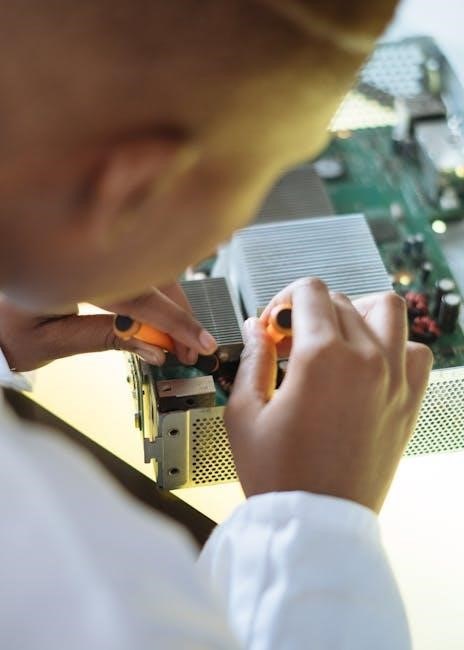
Internal examination reveals that button contacts can become detached or corroded․ This requires opening the Jambox (proceed with caution!) and visually inspecting the button connections on the circuit board․
Resoldering loose connections is often the solution‚ but requires soldering skills and appropriate tools․ If you’re uncomfortable with this‚ seeking professional repair is recommended․ A failed update can also cause button issues‚ requiring a firmware recovery attempt․
Disassembly and Component Location
Disassembling a Jambox requires patience and careful technique․ Begin by removing the rubber base‚ often revealing hidden screws․ Proceed to gently pry open the casing‚ being mindful of internal ribbon cables․ These connect the buttons‚ battery‚ and speaker to the main circuit board․
Key components include: the battery (typically lithium-ion‚ located centrally)‚ the speaker (usually positioned to maximize sound projection)‚ the circuit board (housing all electronics)‚ and the auxiliary port (prone to failure)․
The Bluetooth and Wi-Fi modules are also located on the circuit board․ Document each step with photos to aid reassembly․ Exercise extreme caution when handling the battery to avoid damage or puncture․
Resources and Further Support
For community-driven assistance‚ the r/Jawbone subreddit is an invaluable resource․ Users frequently share troubleshooting tips‚ repair experiences‚ and firmware insights․ You’ll find discussions on unbricking procedures and common hardware failures․
Visual learners may benefit from YouTube repair tutorials․ Several videos demonstrate Jambox disassembly‚ soldering techniques for the aux port‚ and other repair procedures․ Search for “Jambox repair” or “Jawbone Jambox fix”․
Remember to exercise caution when following online guides and always prioritize safety․ These resources offer supplemental support but do not replace professional repair services if you’re uncomfortable with DIY fixes․
Reddit r/Jawbone Community
The r/Jawbone subreddit provides a vibrant forum for Jambox owners seeking help and sharing knowledge․ Users have documented solutions for various issues‚ including the frustrating problem of a “bricked” Jambox – one that displays no lights or sound but is still recognized by a computer․
Specifically‚ discussions from 2016 detail attempts to recover from failed firmware updates‚ even when the buttons become unresponsive․ Members suggest reverting updates and exploring factory reset options‚ though success depends on the extent of the damage․ This community is a great place to find specific advice for the original Jambox model․
Regularly check the subreddit for new threads and solutions as users continue to troubleshoot and revive these classic speakers․
YouTube Repair Tutorials
Numerous YouTube tutorials offer visual guidance for Jambox repair‚ particularly addressing the common issue of static noise and Bluetooth sound failure․ A video from 2019 demonstrates a fix involving the headphone jack’s internal metal contacts․
The tutorial highlights that the switch connecting these contacts can fail‚ preventing proper audio transmission․ The solution involves carefully opening the device and bending the contacts to ensure a secure connection․
These videos are invaluable for those comfortable with basic electronics and soldering․ They provide a step-by-step approach to diagnosing and resolving hardware problems‚ offering a practical alternative to replacing the speaker․ Search “SOLVE JAWBONE JAMBOX Mini” to find relevant content․
Preventative Maintenance Tips
To prolong your Jambox’s lifespan‚ regularly update the firmware via MyTalk․Jawbone․com․ Keeping the software current addresses potential bugs and improves Bluetooth compatibility․ Avoid exposing the device to extreme temperatures or moisture‚ as these can damage internal components․
Periodically clean the headphone jack with compressed air to remove dust and debris that could cause static or connection issues․ When not in use‚ store the Jambox in a clean‚ dry place․
Be mindful of the charging cable and port; avoid excessive strain or damage․ Finally‚ if you encounter intermittent issues‚ a simple hard reset (holding the circle button) can often resolve them before they escalate․
Warranty Information (If Applicable)
Please note that Jawbone ceased operations in 2017‚ rendering original warranties invalid․ Support and warranty services are no longer available directly from the manufacturer․ However‚ some retailers may have offered extended warranties at the time of purchase; check your original sales receipt or credit card benefits for potential coverage․

Due to the age of the Jambox‚ finding official warranty support is unlikely․ Repair options now primarily rely on self-repair using guides like this one‚ or seeking assistance from independent electronics repair shops․
Always exercise caution when entrusting your device to third-party repair services‚ and be aware of potential costs involved․